





Dear AutoCount users, LHDN / HASiL has announced that validation of taxpayer’s TIN and new BRN for e-Invoice API will be effective from 1 August 2026. Based on the announcement, companies registered with SSM or SKM should use the latest 12-digit BRN format. If an old BRN is still used, e-Invoice validation may fail.
What is changing?
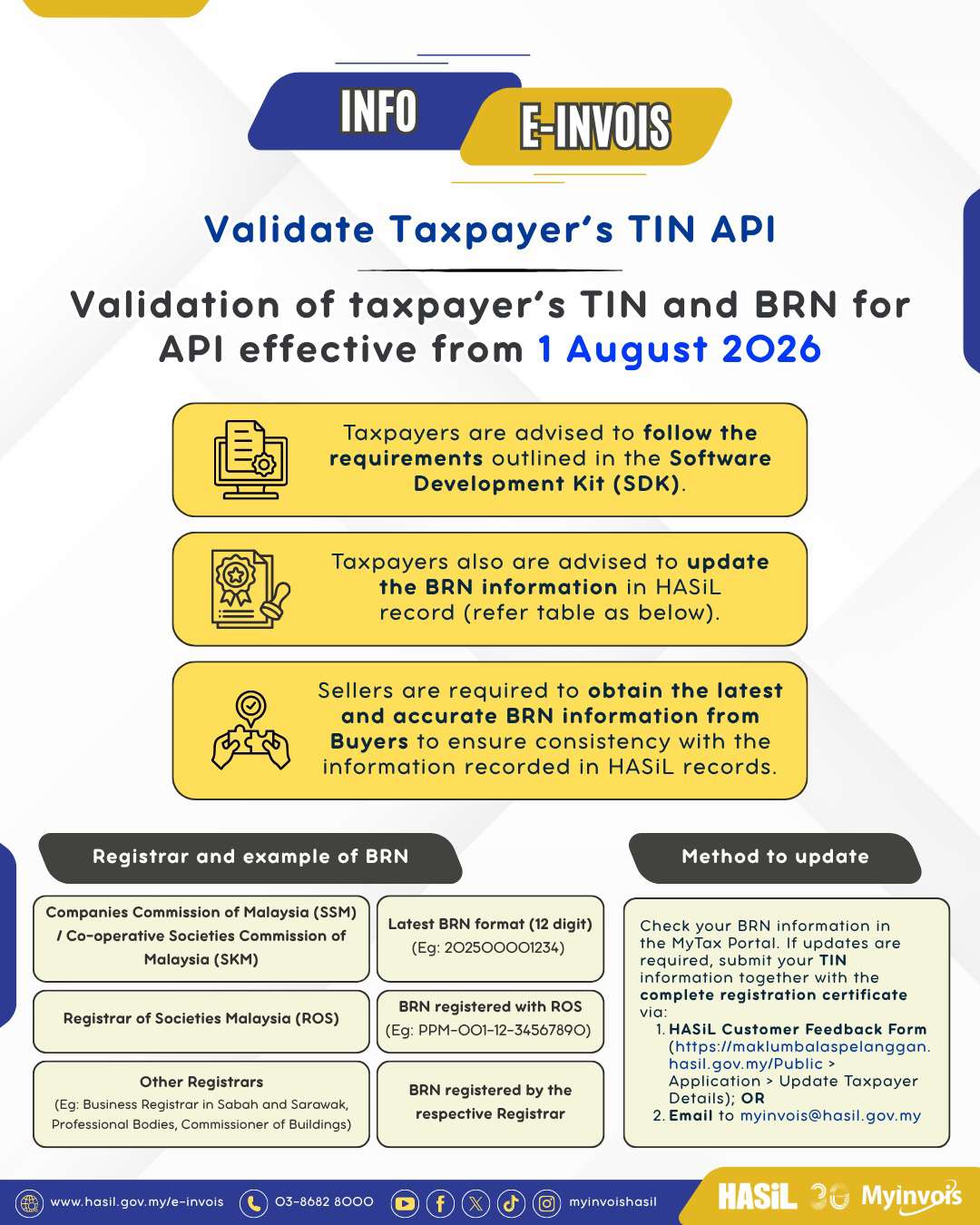
According to the LHDN / MyInvois notice and the MyInvois SDK update highlighted by JomEInvoice, LHDN is strengthening the Validate Taxpayer’s TIN API. The system will validate the taxpayer’s TIN together with the submitted identification value, including BRN for companies and businesses.
This means the BRN stored in AutoCount, POS, ERP, or your customer/supplier master file must match the BRN information recorded in HASiL records. If your client still uses an old company registration number, their e-Invoice submission may fail validation even when the TIN is correct.
What users need to know
- Handle MyInvois Portal / LHDN BRN record first. If your client needs to change from old BRN to new BRN format, they should confirm and update their BRN information in MyTax / HASiL record before changing AutoCount records.
- e-Invoice license may need to be updated with the new BRN. For AutoCount e-Invoice users, the e-Invoice license information should match the latest BRN.
- AutoCount will provide a method to update the e-Invoice license. AutoCount is expected to provide this through AutoCount Accounting 2.2 or POS 5.2 backend, targeted around mid July 2026.
- AutoCount will unlock the BRN field at Tax Entity. This allows users to change BRN directly instead of using the previous workaround method.
Method to Update Your New BRN to HASiL
If your company BRN information in the MyTax Portal is not updated or does not match the latest/new BRN format, update the HASiL record first before relying on the BRN in AutoCount or other e-Invoice systems.
Check your BRN information in the MyTax Portal. If updates are required, submit your TIN information together with the complete registration certificate through one of the following methods:
- HASiL Customer Feedback Form
https://maklumbalaspelanggan.hasil.gov.my/Public
Go to Application > Update Taxpayer Details. - Email MyInvois support
Email to myinvois@hasil.gov.my with your TIN information and complete registration certificate.
After HASiL/MyTax record is updated, review your AutoCount company, customer, and supplier Tax Entity BRN records so that TIN + New BRN validation can match correctly.
BRN format to check
For companies registered with SSM or SKM, the notice shows the latest BRN format as a 12-digit number, for example 202500001234. ROS and other registrars may use their own respective BRN formats.
| Registrar | Example / expected BRN format |
|---|---|
| SSM / SKM | Latest 12-digit BRN format, e.g. 202500001234 |
| ROS | ROS registered BRN, e.g. PPM-001-12-34567890 |
| Other registrars | BRN registered by the respective registrar |
AutoCount V2.2 Rev44 support for BRN changes
AutoCount Accounting V2.2 Rev44 / 2.2.31.44 includes an important enhancement: support to allow editing Tax Entity fields even if there are already submitted e-Invoice transactions.
This helps businesses maintain customer and supplier Tax Entity information, including BRN-related updates, without needing to use the Merge TIN function for certain updates. AutoCount’s release note also states that TIN is still not allowed to be edited directly.
Important technical note: AutoCount’s release note states that this version upgrades the database version to 2.2.96. Please arrange the update properly and ensure backup is done before upgrading.
Recommended action for AutoCount users
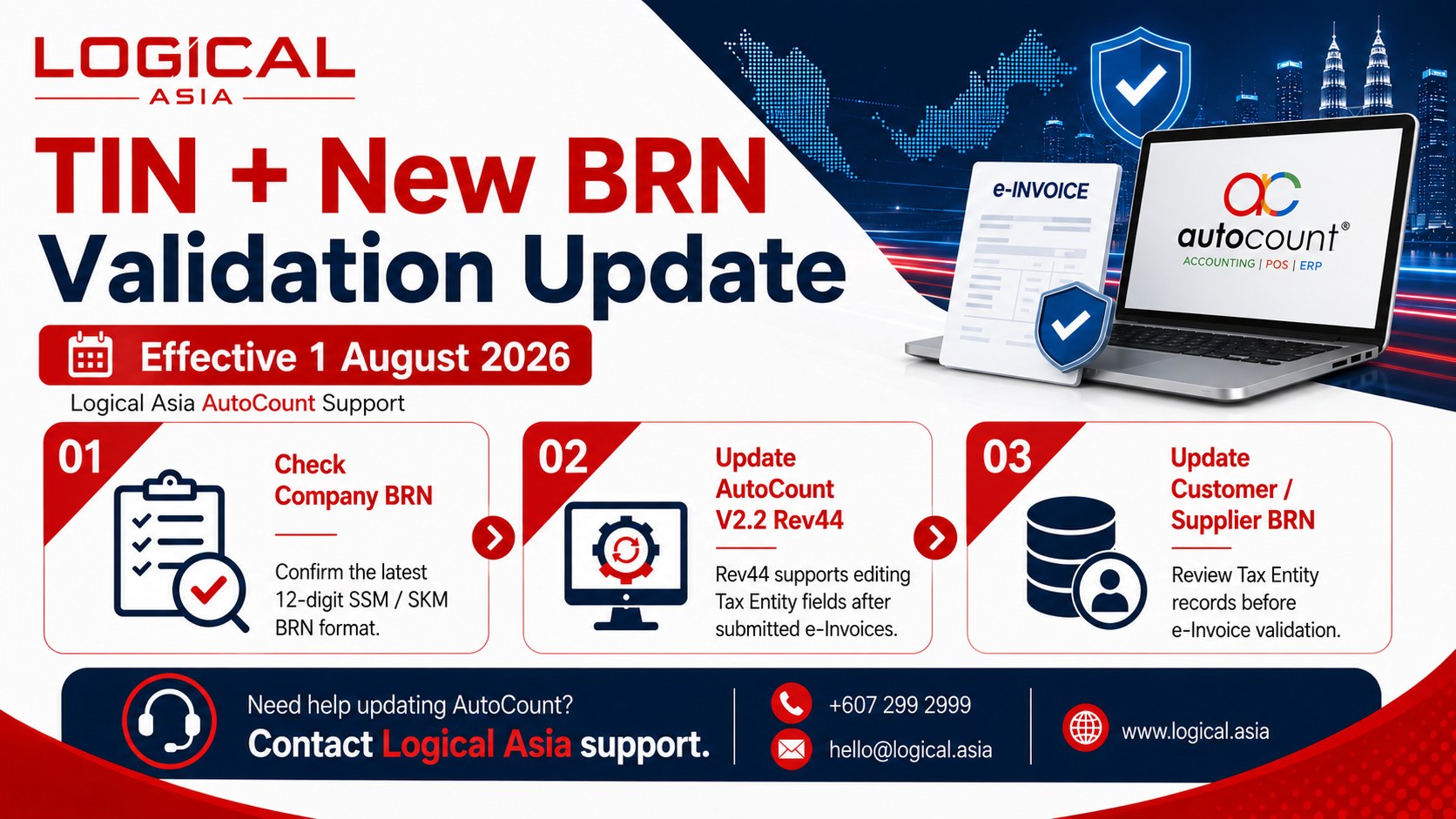
- Check your own company BRN in MyTax / LHDN record and compare it with your SSM or registration document.
- Update MyInvois / HASiL record first if the BRN there is outdated.
- Update e-Invoice license information where required so the license follows the latest BRN.
- Ask customers and suppliers to verify their latest BRN, especially if their profile still shows an old registration number.
- Update AutoCount to V2.2 Rev44 or later so Tax Entity fields can be maintained for submitted e-Invoice records where applicable.
- Update customer and supplier Tax Entity records with the latest BRN before issuing new e-Invoices.
- Test and verify e-Invoice submission after the update.
Need Logical Asia support?
If you are using AutoCount and need help to update your software, e-Invoice license information, or customer / supplier BRN records, please contact Logical Asia support. When our support team is waiting to assist, you may share your AnyDesk ID so we can help check and update the AutoCount version safely.
Reminder: Please prepare a backup before software update and confirm your company, customer, and supplier BRN information before the 1 August 2026 validation change.
Sources
- HASiL / MyInvois notice image: Validate Taxpayer’s TIN API, validation of taxpayer’s TIN and new BRN effective from 1 August 2026.
- AutoCount Accounting: What’s New in Version 2.2.31.44